Commonly used run commands
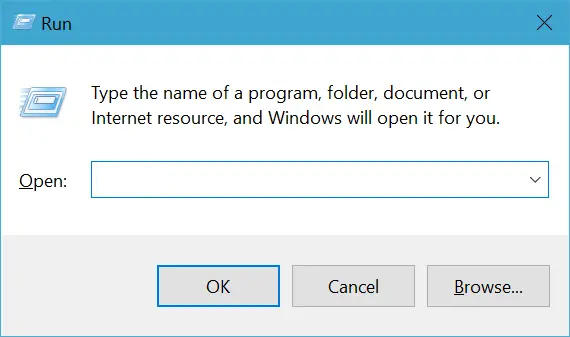
The Windows "Run" dialog (accessed by pressing Win + R) serves as a quick gateway to execute commands, launch applications, and access various system utilities with just a few keystrokes. After all, if you memorize Run commands, you can access a particular app in just 2 steps instead of many clicks. Since I don’t like frequently reaching out for the mouse; therefore, I have memorized all the required keyboard shortcuts and commands to minimize my interaction with the mouse. Here’s a list of the top Windows run commands in windows that you should memorize.
| Keyword | Job |
|---|---|
| "URL" | Open Any Website With Default Browser |
| "c:" | Open C Drive |
| "shutdown /s" | Shutdown Computer |
| "shutdown /r" | Restart Computer |
| "cmd" | Open Command Prompt |
| "control" | Open Control Panel |
| "msinfo32" | Open System Information |
| "diskmgmt.msc" | Open Disk Management |
| "devmgmt.msc" | Open Device Manager |
| "osk" | Open On-Screen Keyboard |
| "notepad" | Open Notepad |
| "calc" | Open Calculator |
| "ncpa.cpl" | Access Network Connections |
| "sysdm.cpl" | Access System Properties |
| "firewall.cpl" | Access Firewall Properties |
The cool thing about Run is that it remembers all the commands you type in it. Therefore, you will only have to type the first letter to enter the command in the future. In addition, pressing "Ctrl + Shift + Enter" while typing a command will run it with elevated privileges (as an administrator), and pressing Tab can autocomplete file paths and commands based on history.